Completion requirements:
- View
User Guide - AI Prompt Generator for Moodle
Introduction
The AI Prompt Generator is a Moodle block plugin designed to help teachers create effective AI prompts for their courses. This guide will walk you through all aspects of using the plugin efficiently.
Getting Started
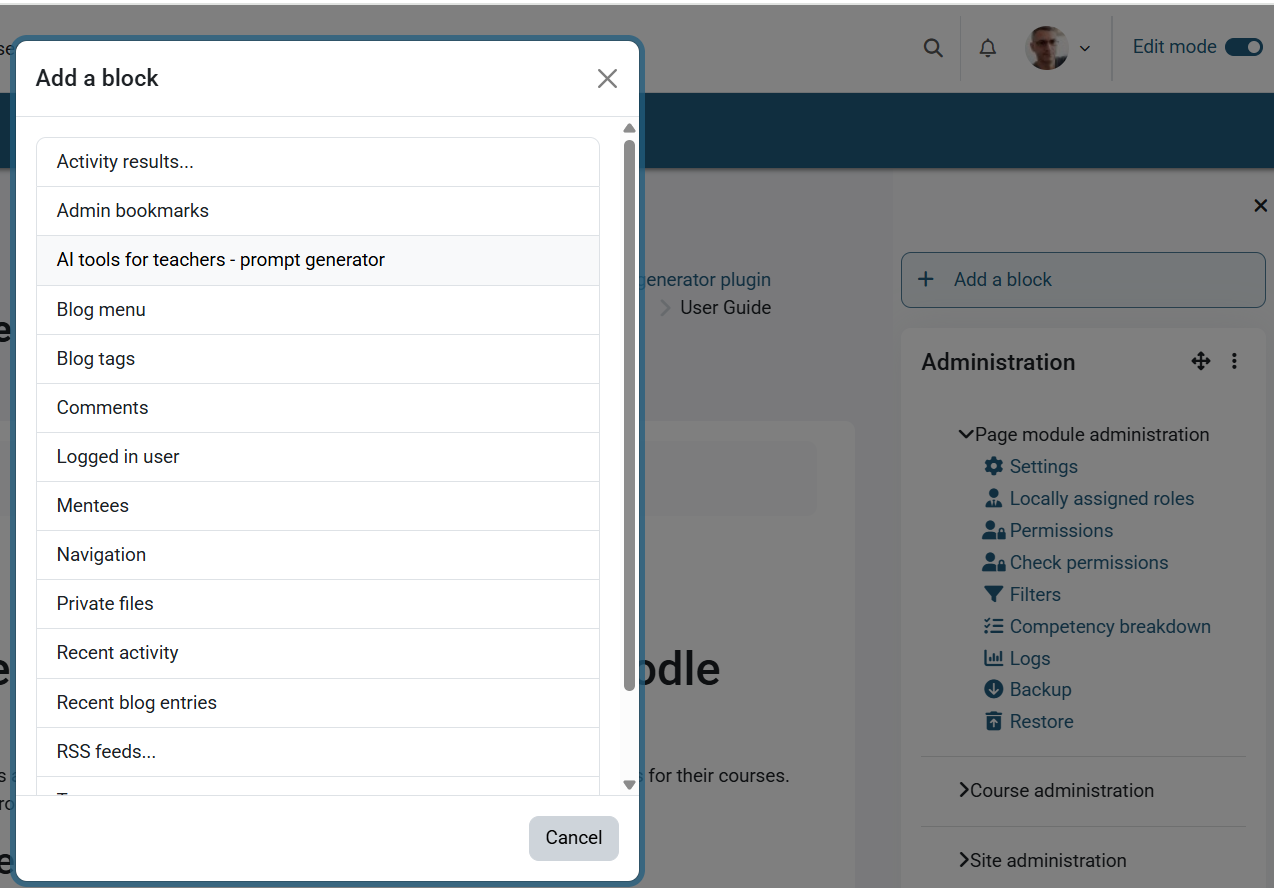
Adding the Block to Your Course
- Turn editing on in your course
- Click "Add a block"
- Select "AI Prompt Generator" from the list
- The block will appear with an "Open Prompt Builder" button
Basic Navigation
- The block displays competencies and outcomes if configured for your course
- Click "Open Prompt Builder" to access the main form
- Use the Browse buttons next to fields to open selection modals
Using the Prompt Builder
Form Fields Overview
- Subject
- Automatically filled with course name
- Can be modified for specific topics
- Helps contextualize the prompt - Student Age/Grade
- Enter age directly or use Browse
- Select single age or range
- Format: "15" or "15-16"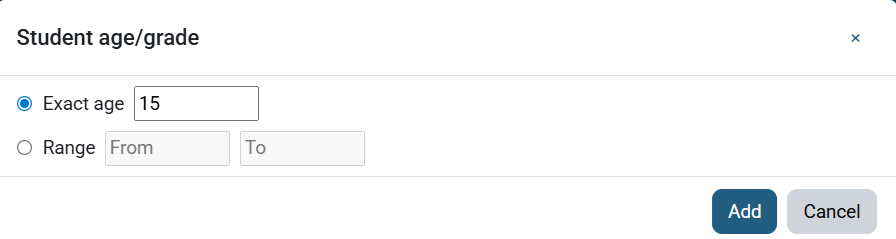
- Topic
- Enter teaching topic
- Use Browse to select from course sections
- Supports free text and suggestions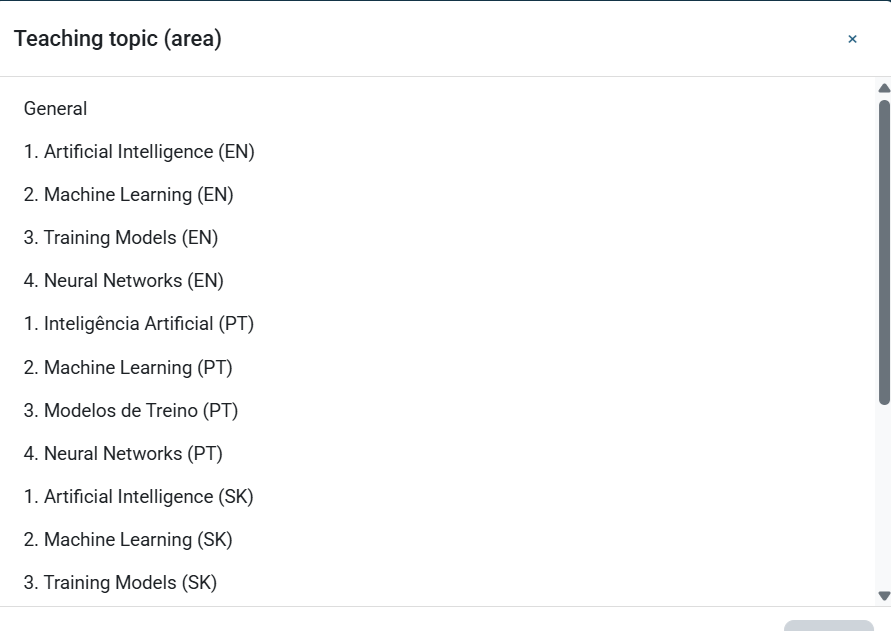
- Lesson Title
- Name your specific lesson
- Browse course sections/activities
- Helps focus the prompt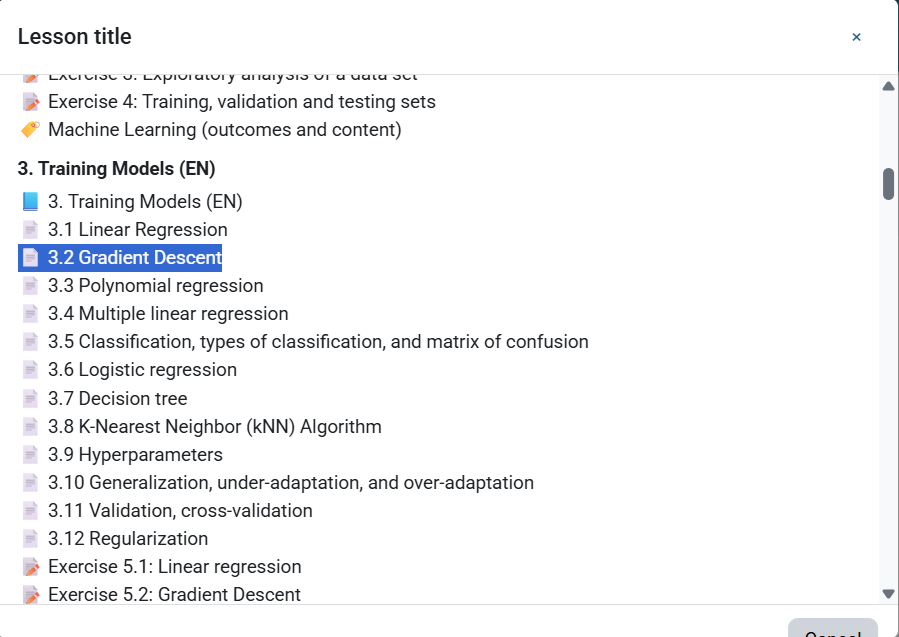
- Class Type
- Specify teaching format
- Common options via Browse
- Examples: lecture, workshop, lab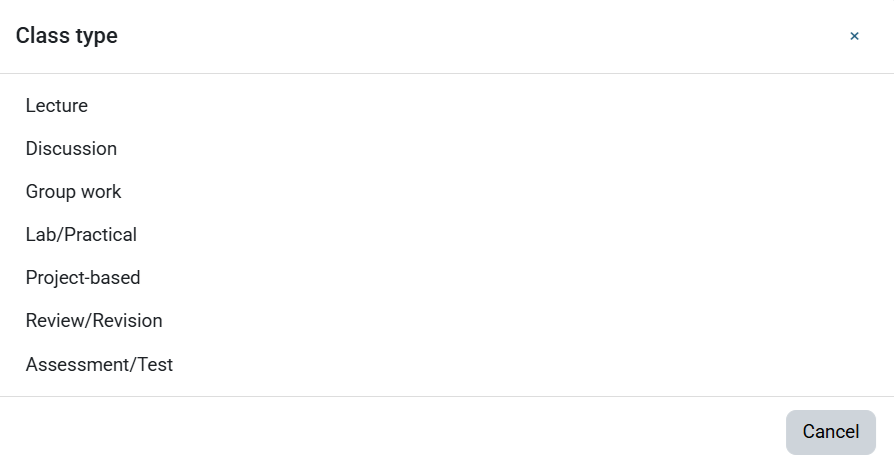
- Number of Classes
- Specify how many sessions
- Minimum value: 1
- Affects prompt complexity - Lesson Duration
- Choose 45 or 60 minutes
- Helps structure content appropriately - Learning Outcomes
- Link to course competencies
- Include gradebook outcomes
- Multiple selection supported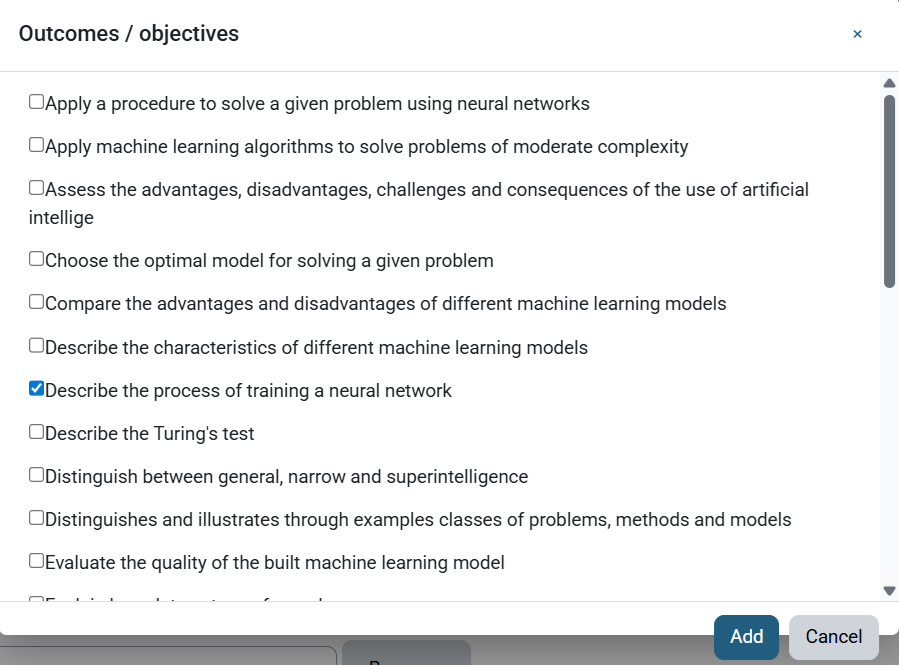
- Language
- Select prompt language
- Affects generated text
- Supports language codes - Purpose
- Define prompt objective
- Examples: lesson plan, quiz
- Browse common purposes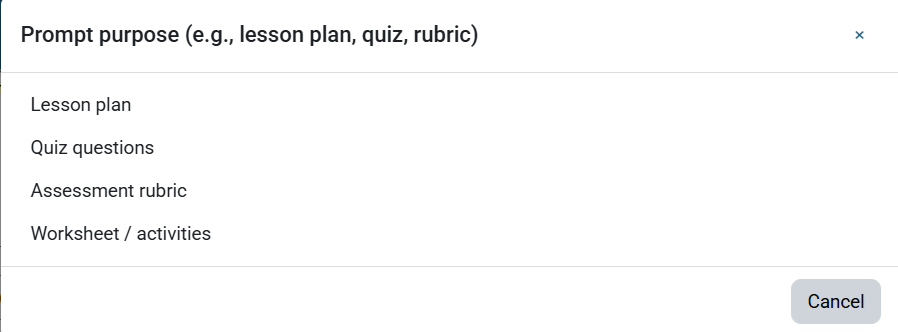
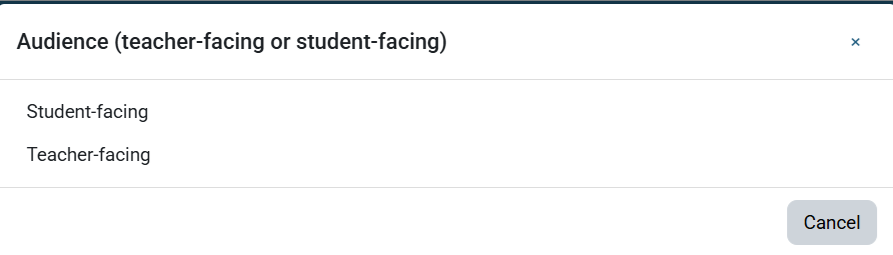
- Audience
- Specify target reader
- Teacher or student-facing
- Affects prompt tone
Using Browse Modals
- Opening Modals
- Click Browse button next to field
- Modal opens with options
- Search if available - Making Selections
- Single or multi-select
- Click to choose
- Confirm selection - Custom Entries
- Type directly in fields
- Combine with selections
- Free text supported
Working with Competencies and Outcomes
Viewing Available Items
- Competencies
- Course-level competencies
- Activity competencies
- Displayed in block - Outcomes
- Local course outcomes
- Global outcomes
- Integration with grades
Adding to Prompts
- Selection Process
- Open outcomes modal
- Multi-select items
- Review in textarea - Customization
- Edit selected text
- Add custom outcomes
- Format as needed
Generating and Using Prompts
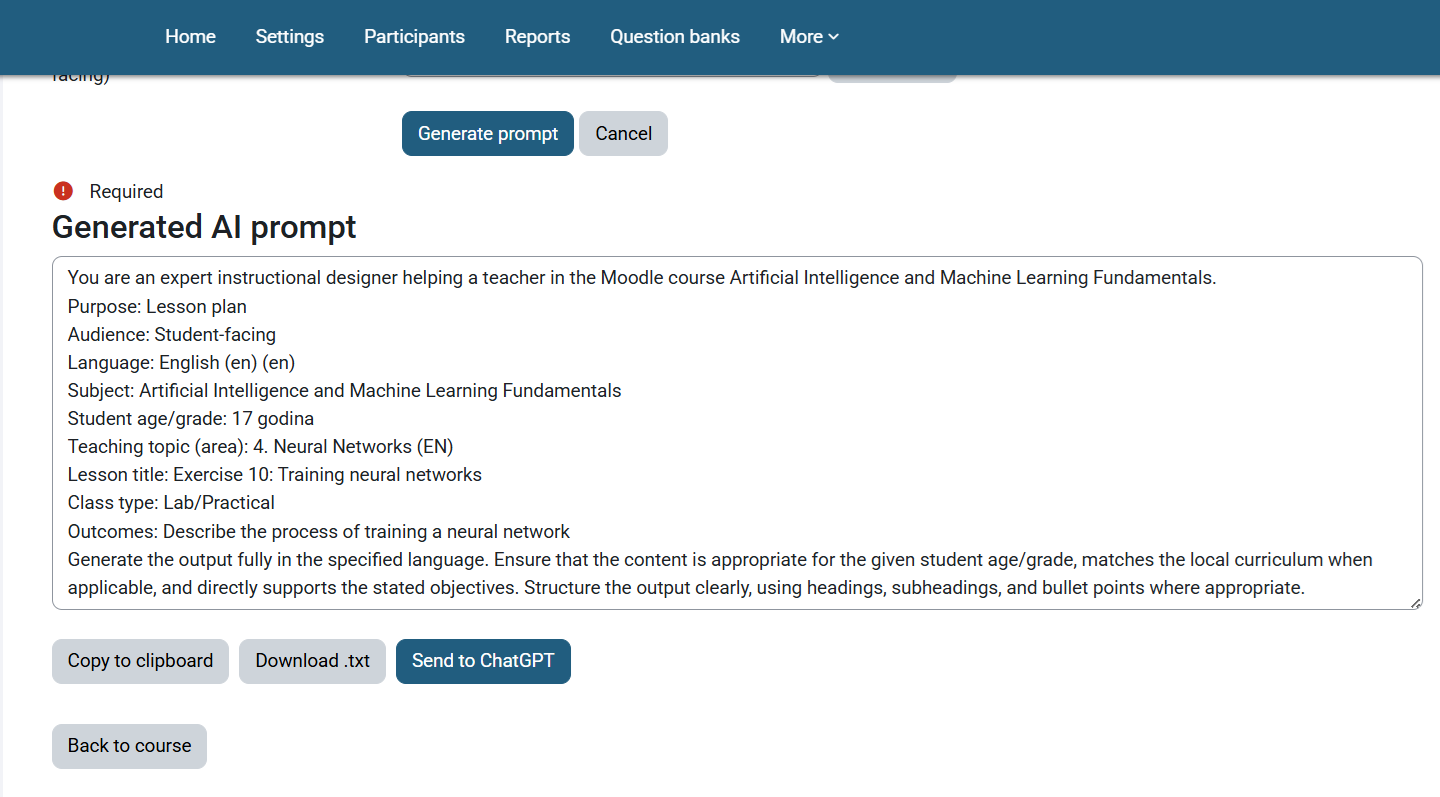
Prompt Generation
- Form Submission
- Fill required fields
- Review all inputs
- Click "Generate prompt" - Output Options
- Copy generated text
- Download as file
- Send to AI (if configured)
AI Integration
- Provider Selection
- Choose OpenAI or Ollama
- Verify configuration
- Select model - Sending Prompts
- Click "Send to AI"
- Wait for response
- View inline results
Best Practices
Creating Effective Prompts
- Clear Objectives
- Define specific goals
- State expected outputs
- Include context - Appropriate Detail
- Include relevant info
- Avoid excess detail
- Stay focused - Language Choice
- Match target audience
- Use consistent terminology
- Consider localization
Managing Content
- Organization
- Group related prompts
- Use consistent naming
- Track versions - Reusability
- Create templates
- Share common elements
- Adapt existing prompts
Troubleshooting
Common Issues
- Access Problems
- Verify permissions
- Check course enrollment
- Confirm capabilities - Form Issues
- Required fields
- Valid input formats
- Browser compatibility - Integration Errors
- Check settings
- Verify connections
- Review logs
Getting Help
- Documentation
- Read README
- Check Moodle docs
- Review updates - Support
- Contact admin
- Forum posts
- Issue tracker
Privacy and Security
Data Handling
- User Data
- Input processing
- Storage location
- Retention policy - AI Services
- Data transmission
- Provider policies
- Local vs cloud
Compliance
- GDPR
- Data protection
- User consent
- Rights management - Institutional
- Local policies
- Data agreements
- Usage guidelines
Updates and Maintenance
Staying Current
- Version Checks
- Monitor updates
- Review changes
- Update when ready - Settings Review
- Verify configuration
- Check integrations
- Test functionality
Backup and Recovery
- Data Backup
- Regular exports
- Safe storage
- Recovery testing - Settings Backup
- Configuration save
- Provider settings
- Custom templates
Additional Resources
Documentation
- Official Docs
- Plugin manual
- Moodle guides
- API reference - Community
- User forums
- Support channels
- Knowledge base
Training
- Tutorials
- Getting started
- Advanced features
- Best practices - Examples
- Sample prompts
- Use cases
- Success stories
Last modified: Monday, 13 October 2025, 5:16 AM