Completion requirements:
- View
Artificial Intelligence (AI) has increasingly established itself as a transformative force across various sectors of society, and education is no exception. For teachers, this technology represents an opportunity to reimagine pedagogical practice with greater creativity, efficiency, and student-centred focus. However, more than just an abstract promise, AI already offers a solid set of practical tools that can be integrated into everyday school life, even by teachers without advanced technical training.
In this chapter, we explore in a structured way how teachers can use these tools to plan, teach, assess, and communicate more effectively. The approach is centred on practical usefulness, with examples, platforms, and strategies that can be applied in real educational contexts.
Before exploring specific tools, it is important to recognise the areas of teaching practice in which AI can serve as a strategic ally. The main areas include:
-
Lesson planning (support in creating content and activities);
-
Formative and summative assessment (automated marking, personalised feedback);
-
Time management (automation of repetitive tasks);
-
Support for personalisation (activity recommendations based on student data);
-
Professional development (access to personalised training and resources).
The integration of AI into the classroom should be seen as a partnership — it does not replace the teacher, but rather enhances their ability to teach more effectively, inclusively, and dynamically.
1. Lesson Planning with AI Support
Lesson planning requires time, reflection, and organisation. With the help of AI, this process becomes more efficient without compromising pedagogical quality.
Tools such as Eduaide.ai or LessonPlans.ai allow teachers to generate complete lesson plans, including objectives, content, methodological strategies, and forms of assessment. By providing parameters such as year group, topic, and duration, the teacher can receive an initial proposal to work from and adapt to their specific context.
In addition, tools like ChatGPT or Gemini are useful for structuring learning sequences, creating differentiated activities, and even suggesting curricular adaptations for pupils with special educational needs.
Another relevant example is MagicSchool.ai, which centralises features such as generating assessment rubrics, weekly plans, and motivational strategies for pupils — all based on simple inputs provided by the teacher.
These tools do not replace pedagogical reflection, but act as creative “co-pilots”, offering ideas that can be adapted and enriched with the teacher’s experience.
2. Creating Teaching Materials and Resources
Teaching requires a variety of materials that engage different learning styles. AI can support teachers in diversifying their resources quickly and with high quality.
Tools such as Canva with AI (using features like Magic Write or Text-to-Image) enable the creation of appealing presentations, worksheets, infographics, and even educational videos. Simply input a theme or topic, and the AI suggests visual elements, slide structures, and content tailored to the target audience.
In addition, Genially, with AI support, allows for the creation of interactive content such as quizzes, educational games, and virtual escape rooms — ideal for developing skills through play.
For audiovisual content, platforms like Synthesia, Pictory, or Lumen5 generate videos with narration and visuals, useful for introducing new topics or reviewing content in an engaging way. Text-to-Speech tools like Murf.ai or ElevenLabs help create accessible materials for students with reading difficulties, promoting inclusion.
For example, a science teacher might use AI to generate an explanatory video about the water cycle, complete with animated images and clear narration, while a history teacher could create an interactive timeline with AI support to help pupils better understand complex historical events.

NOTEBOOKLM - Practical Teacher's Guide
1. WHAT IS IT
NotebookLM is an artificial intelligence (AI) tool developed by Google designed to support teachers and researchers. It allows you to organize and transform your materials into a wide variety of pedagogical resources. From documents, articles, notes or web pages, the user can generate, with a few clicks, diversified content such as summaries and study guides, audio podcasts, video presentations, slides, mind maps, infographics, quizzes and study cards. In this way, NotebookLM allows you to save valuable time, enhance pedagogical creativity and simplify the work of preparing teaching materials, making classes more dynamic and appealing to students.
2. HOW IT WORKS
Access the LM Notebook https://notebooklm.google.com
-
Click " Sign in"
-
Use your Google account (Gmail)
3. Create Your First Notebook
-
On the homepage, click the "+ Create New" button
-
Give the notebook a descriptive name Example: "Science 6th grade-Photosynthesis"
NotebookLM is structured into three main building blocks that guide the teacher's workflow
|
Block |
Main Function |
|
Sources |
Provide the knowledge base. This Artificial intelligence only uses what is given to it. |
|
Chat |
Allows you to interact with the sources and create resources with specific prompts. |
|
Resources (Studio) |
Allows you to automatically generate multimodal materials (slides, podcasts, maps, quizzes). |
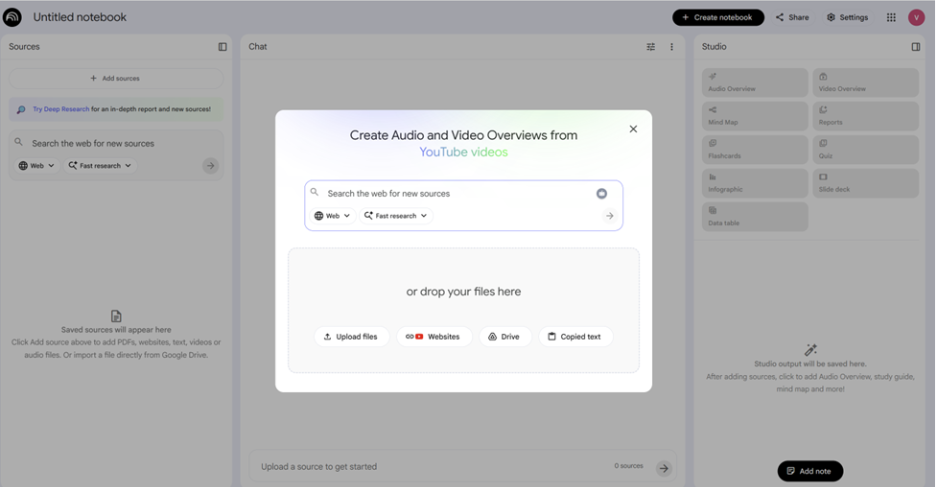
4. Add Sources (Documents)
Option A: Upload files from your computer
Supported files: PDF, .txt, Markdown, Audio (e.g. mp3), .avif, .bmp, .gif, .ico, .jp2, .png, .webp, .tif, .tiff, .heic, .heif, .jpeg, .jpg, .jpe
Option B: Google Drive
Import documents directly from Drive.
Option C: Internet link
Add URL to web pages or YouTube videos.
Option D: Paste text
Copy and paste notes, lesson plans, or parts of documents.
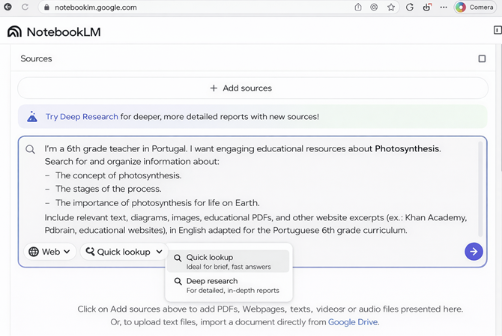
Option E: Web Search
Enter a context to investigate a topic.
Quick search - immediate and general response.
In-depth investigation – more detailed research (takes longer)
Source management
After adding, you can
-
Open to reading
-
Rename font name
-
Permanently delete from source
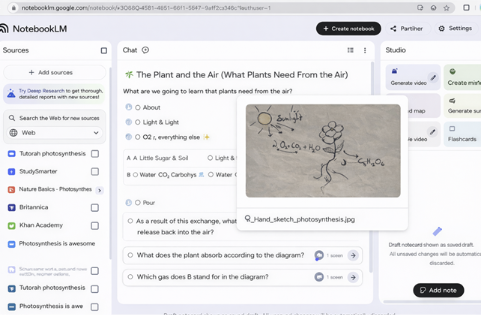
5. Interact with sources (CHAT)
5.1 Automatic summary
Once the sources are loaded, NotebookLM generates an overall summary.
5.2 Questions in the chat
-
Write your question in natural language
-
Press Enter or click the send icon
Examples of prompts
|
Pedagogical Objective |
Prompt example |
|
Simple Summary |
Summarize the main contents of these sources in 3 paragraphs |
|
Accessible Language |
Explain these sources as if I were 10 years old. Uses simple analogies, everyday examples, and pictograms to help visualize them. |
|
Pedagogical differentiation |
Based on this image, create a very easy-to-read summary, using pictograms, adapted for students with special education needs in the 6th grade. It also includes 3 consolidation exercises and 2 adapted challenges. |
|
Structured evaluation |
Prepare an assignment test on the topic [Project topic]. The test should include 10 text-only questions, with a variety of types: multiple choice, true/false, complete, order, relate columns, and 1 short answer question. Organize the questions by difficulty level: 3 easy, 4 questions of medium difficulty and 3 challenging. At the end, present a grading and correction grid. |
|
Content in another Language |
Generates an intermediate-level (B1) English summary with short sentences and accessible vocabulary. |
6. Verify sources (citations)
Each LM Notebook response includes quotes: 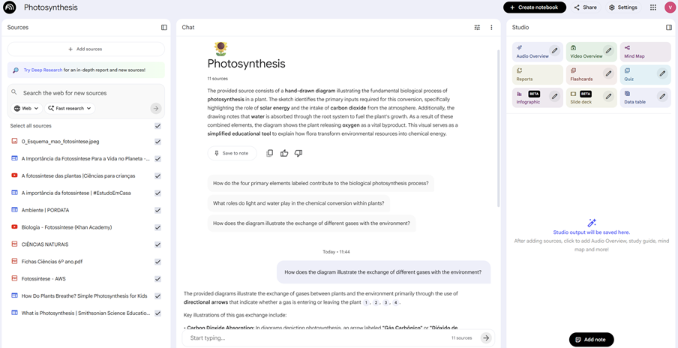
Look for the numbers in parentheses in the response, example: [1], [2] Indicates which document the information comes from, to confirm that the AI is not responding with hallucinations
7. Create educational materials (Studio)
Studio automatically generates a variety of resources.
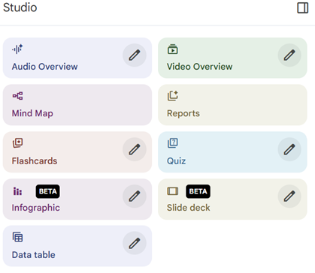
Summary table of resources
|
Resource |
Pedagogical Function |
Examples |
|
Audio Summary |
Converts sources into an accessible, multilingual conversational podcast. Excellent for listening review and studying on the go. |
Allows you to download it to accompany a presentation. Personalized PowerPoint with personal content. |
|
Video Summary
|
Generates a video in presentation format with narrated slides, combining relevant text, diagrams, chart, or images extracted from the sources, ideal for classes, presentations, or visual material for students. |
The video is generated in the background, this feature takes a few minutes, at the end it is possible to download it. Ideal for classes or presentations. |
|
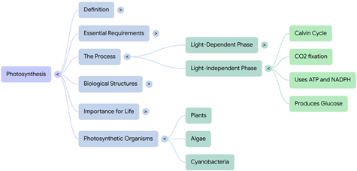
Mind Map
|
Automatically creates a visual diagram with the main topics and sub-themes of the sources, allowing the teacher or student to have a clear view of the content structure, identify links between concepts, and organize ideas. |
It can be expanded/collapsed and exported to PDF. |
|
Reports
|
Generates reports that can focus on a glossary of technical terms on the contents. |
Generates an organized ummary of the sources. |
|
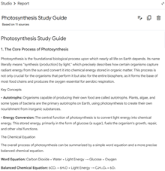
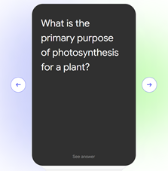
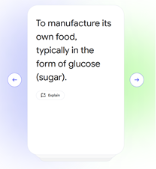
Study Cards
|
Automatically generates cards and self-assessment exercises based on the content of the sources, useful for assessment, active study or preparing worksheets for students. Excellent way to test knowledge and follow the study.
|
Allows pedagogical differentiation when selecting the level (Easy/Medium/Hard). |
|
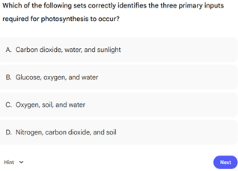
Questionnaires
|
Generates automatically multiple-choice questions and offers immediate feedback, showing the correct answer. Ideal for preparation of revision classes and for formative assessments. Allows easy/medium/hard level. |
Great for formative reviews or assessments. It generates several questions with immediate feedback. |
|
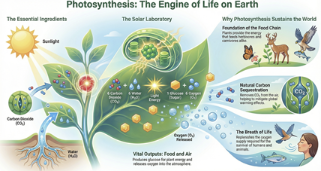
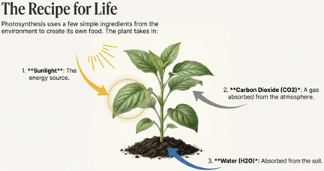
Infographics
|
Ideal for consolidating the search in a single image. Use for quick review of concepts or to post in the classroom. |
Visual summary of a complex process Create a poster that can be printed. |
|
Slideshow
|
Create visual slides with image integration powered by google's Nano Banana image generator |
For lessons or visual syntheses |
|
Notes
|
Saves relevant information for future reuse. |
They can be used as a new source. |
8. Best Practice Tips
-
The quality of the answers depends on the quality of the sources provided.
-
Be specific in your questions - the more context you give, the better the answers will be
-
Always review AI-generated content before using it with students
-
NotebookLM is a support tool, it does not replace pedagogical practice.
Important: NotebookLM only works with the sources you provide. It does not have access to the real-time internet or external databases. Make sure to upload all the materials relevant to the topic you want to work on.
9. Advantages For Educational Practice
-
Adapts the same content to multiple learning styles (visual, auditory, textual).
-
It significantly reduces material preparation time.
-
Intuitive interface, accessible even for users with little technological experience.
-
It allows you to centralize and organize all materials in a single notebook.
-
It facilitates the reuse and continuous updating of educational resources.
3. Personal Organisation and Time Management
Work overload is one of the main causes of stress among teachers. AI offers solutions to make time management smarter.
Tools such as Notion AI allow teachers to organise their work in blocks: weekly planning, lesson logs, learning objectives by class group, project ideas, and more. AI also helps summarise information, generate task lists, and even anticipate deadlines.
Platforms like Trello with AI and ClickUp can be used to organise interdisciplinary projects, manage calendars, and set priorities. The use of automatic labels and categorisation suggestions saves time on organisation.
For scheduling meetings with parents or educational teams, Calendly, integrated with AI, makes it easy to synchronise availability, send automatic reminders, and avoid scheduling conflicts.
When well integrated, these tools help teachers free up time for what really matters: direct engagement with pupils and pedagogical reflection.
4. Communication with Pupils and Families
The relationship between school, pupils, and families is central to educational success. AI can facilitate this communication, making it clearer, more efficient, and more inclusive.
Platforms such as ClassDojo, with AI-powered features, enable the sharing of information with parents and guardians, showcasing pupils’ progress and sending automated and personalised messages.
Translation tools such as DeepL Translator with AI and Google Translate with neural support allow communication with families who are not fluent in Portuguese. This is particularly useful in multicultural contexts or in schools with a diverse student population.
To simplify lengthy or technical texts (such as circulars, regulations, and recovery plans), the use of automatic summarisation tools, such as TLDR This or Quillbot, allows the creation of more accessible versions tailored to the recipients’ literacy levels.
5. Pedagogical Differentiation and Inclusion
In an increasingly diverse educational system, personalised learning is an imperative. AI contributes tools that enable responses to pupils’ individual needs, promoting equity.
Tools such as Khan Academy, now integrated with AI (Khanmigo), offer adaptive content that adjusts in real time to pupils’ performance. Teachers can closely monitor each student’s progress and intervene more effectively.
Google’s Socratic app allows pupils to explore questions through images, voice, or text, with step-by-step explanations. This is particularly useful in fostering autonomous learning.
Other platforms, such as Curipod and Diffit, adapt content to different levels of linguistic and cognitive complexity, providing added value in inclusive teaching contexts.
AI-powered chatbots have also become valuable companions in differentiated education. These conversational tools simulate human interaction and can guide, support, and challenge pupils in real time. Chatbots such as ChatGPT, Copilot, or Mizou can act as virtual tutors, providing explanations, generating examples, or scaffolding problem-solving according to each learner’s level. Beyond content delivery, they promote dialogue, curiosity, and reflection, helping students articulate their reasoning and develop metacognitive awareness.
This use of AI enables teachers to accommodate different learning paces and styles, respecting each pupil’s individuality and avoiding a one-size-fits-all approach to learning.
Below, we will present how the Mizou chatbot works in practice.
How the Mizou Chatbot Works
- Access the Platform
- Go to https://www.mizou.com

- Sign in or create a free account.
2. Select a Chat Mode
- Choose whether you want Mizou to act as a tutor, coach, lesson assistant, or student companion.
- Each mode offers different interaction styles and pedagogical aims.
3. Define the Topic or Learning Goal
- Enter a subject, question, or learning objective (e.g., “help students understand fractions” or “generate discussion prompts about ecosystems”).
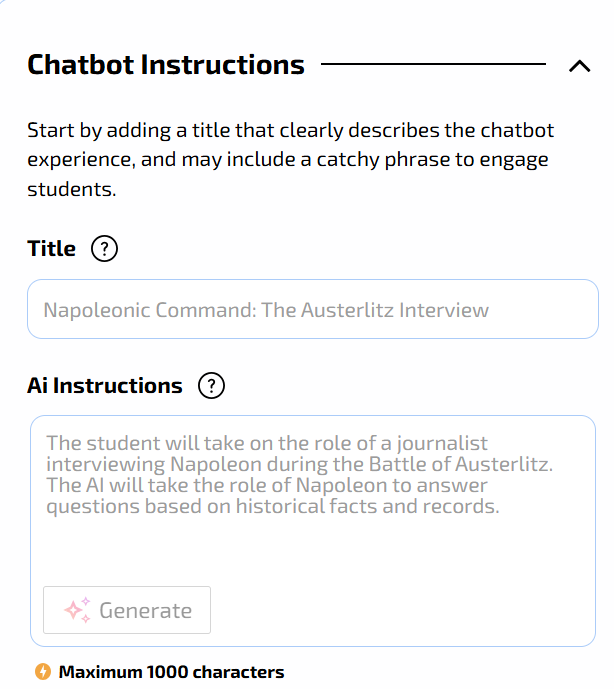
- Mizou adapts its responses to the chosen goal.
4. Interact in Real Time
- Engage in a text-based dialogue with the chatbot.
- Mizou provides explanations, asks guiding questions, or offers activities at different levels of difficulty.
5. Customise the Interaction
- Adjust the tone, complexity, and target age group.
- Teachers can request differentiated versions of the same content for diverse learners.
6. Export or Share the Output
- Save conversations, export activity drafts, or share prompts with students or colleagues.
- Ideal for lesson planning or in-class demonstrations.
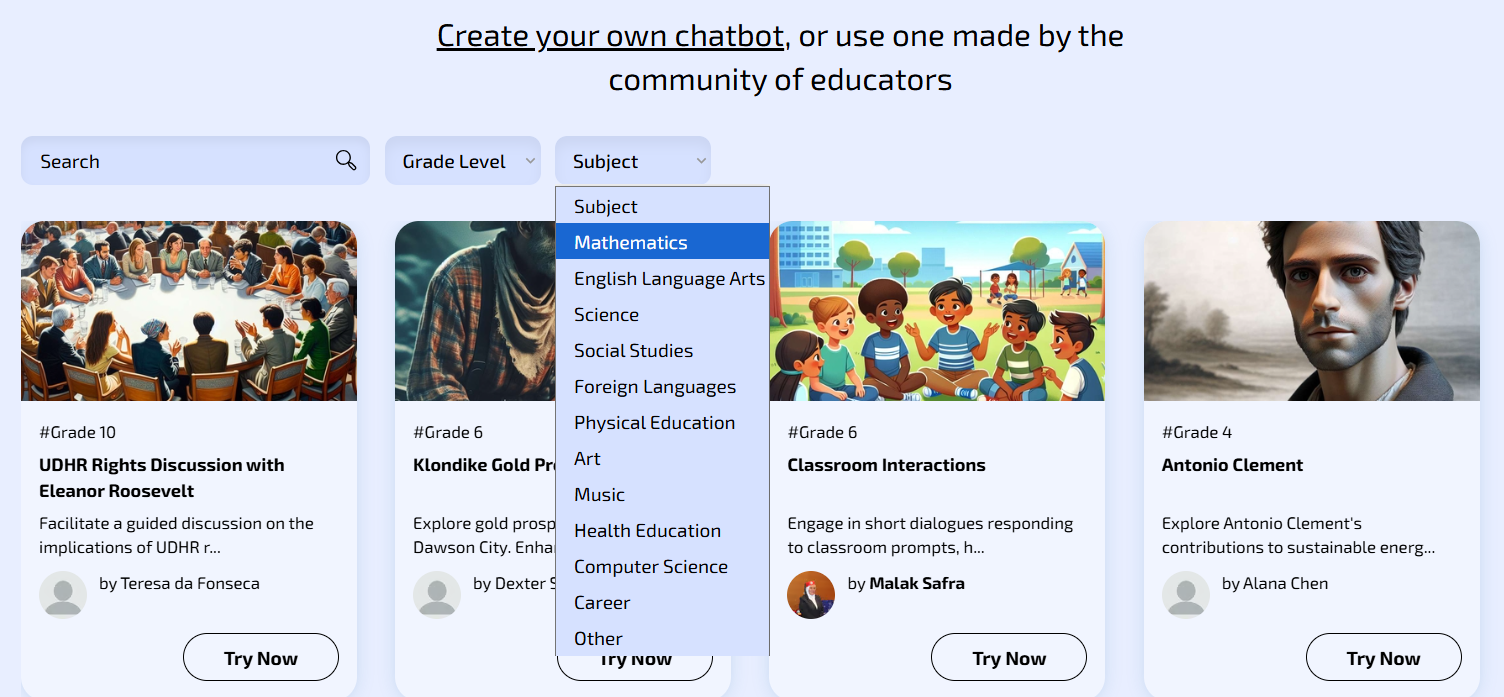
With Mizou, mizou.com/explore, users can easily select from a growing library of community-shared chatbots. These AI tools are meticulously tailored to diverse learning goals, offering students various interactive formats such as engaging quizzes, dynamic role-plays, structured debates, and detailed historical-figure simulations. A core benefit of the platform is its seamless accessibility: students can begin interacting with any chosen chatbot simply by scanning a QR code or clicking a direct link, completely eliminating the need for any sign-up process, thus making it a truly frictionless tool for integrating AI into the classroom.
Pedagogical Advantages and Responsible Use
When thoughtfully integrated, Mizou can enrich classroom learning by promoting inquiry, supporting differentiation, and encouraging active engagement. Its adaptive design makes it particularly valuable for inclusive education, offering real-time feedback and scaffolding tailored to individual learners.
However, effective use requires teacher mediation and critical oversight. Educators should verify the accuracy of responses, ensure alignment with curricular goals, and safeguard student data and privacy. Chatbots should be seen not as replacements for human interaction, but as complementary tools that enhance creativity, reflection, and personalised learning experiences within a well-structured pedagogical framework.
Artificial Intelligence Tools for Foreign Students
- DEEPL

- High-quality translation: Accurately follows European Portuguese grammar.
- Paid. Free (with character/file limits).
- File translation: The free version allows full document translation (PDF, Word, PPT) while preserving the original formatting (limited to a few files per month).
- Teacher use: The teacher can quickly translate a worksheet into the student’s mother tongue so that they do not miss the subject content while learning the language.
- GOOGLE TRADUTOR
- Text, voice and photo translation (worksheets, classroom posters, exercises).
- Useful for fast teacher–student communication.
- Works on mobile phone or computer.
- Completely free.
- Supports over 100 languages and allows offline translation, which is useful in schools with limited internet access.
- CHATGPT & GEMINI & COPILOT
- Go to: https://chatgpt.com/
- Go to: https://copilot.microsoft.com/
- Go to: https://gemini.google.com/

- Use generative AI chatbots not to create content from scratch, but to adapt existing content;
- Text Simplification: AI can take a complex History or Science text and rewrite, making it easier to read for those who are still learning the language;
- Glossary Creation: e.g., ask the AI to extract the 10 most difficult words from a text and instantly create a bilingual glossary;
- Free versions are sufficient.
- MICROSOFT TRANSLATOR

- Real-time voice translation during lessons;
- Teacher speaks → student sees text in Portuguese, for exemple + translation in their language;
- Works on mobile phone or computer;
- Excellent for students who do not understand basic instructions;
- Completely free;
- For giving quick and direct instructions to a student who did not understand a task. The teacher speaks in Portuguese, for exemple, and the phone displays it in the student’s language.
Artificial Intelligence Tools for Students with Hearing Difficulties
- GOOGLE LIVE TRANSCRIBE
- Watch the video:
- The student places the phone on the desk → sees real-time captions;
- Excellent for classrooms and environments with moderate noise;
- Completely free (Android);
- Sound alerts: Notifies when a bell rings or someone knocks on the door (useful if the student is very focused on the task).
- CHATGPT – AUDIO TRANSCRIPTION AND SUMMARIZATION
- Go to: https://chatgpt.com/

- The student can record short explanations from the teacher; there is a ‘voice mode’ for voice messages in the app: voice messages can be recorded and transcribed into text;
- ChatGPT → creates a summary and explains it in simple language;
- The audio from these messages is retained while the conversation remains in the chat history. If the conversation is deleted, the audio clips are deleted within up to 30 days.
- MICROSOFT ONENOTE – TRANSCRIPTION
- Allows recording of the class audio and generates a clear transcription;
- Students can then review, copy, and study at their own pace;
- Very useful for students who have difficulty hearing from a distance;
- Requires using the latest version of OneNote and being signed in to Microsoft 365 to use this feature;
- Audio files and transcriptions are saved in a specific folder in the user’s OneDrive.
Artificial Intelligence Tools for Students with Hearing Difficulties
- DIGITAL READING – IMMERSIVE READER (MICROSOFT)

- An integrated tool in Microsoft Word, Edge (browser), OneNote, and Teams, designed to improve reading;
- • Visual Adaptation: Allows the student to change the page background (e.g., black background with yellow letters for high contrast), greatly increase font size, and adjust word spacing;
- • Read Aloud: Reads digital text with a very natural Portuguese neural voice;
- • Free (integrated into Microsoft tools, many available via web for schools at no cost);
- • Example: The teacher shares the class text in digital format (Word or PDF). The student opens it on the school computer, activates Immersive Reader, adjusts the contrast to what is most comfortable, and listens to the text while following along visually
- QUICK SCANNING – GOOGLE LENS
- Watch the video:

- Uses the phone camera (integrated in the Google Photos app or Google app) to analyze images;
- Reading the Board: If the student cannot read what is on the board, they can point the phone, take a photo with Lens, and use the "Read Aloud" function or simply zoom in on the captured image on the phone screen;
- Text Extraction: Copy text from a sheet of paper to the phone to enlarge the font later;
- Free.
- SEEING AI (MICROSOFT)
- Watch the video:
- A free app (iOS and now on some Androids) that uses the camera to "see" the world and describe it via audio;
- Instantly reads any text the camera is pointed at (e.g., a notice on a door, a title in a book);
- Takes a photo of a worksheet and reads the entire text aloud, allowing navigation by paragraphs;
- Describes the surroundings (e.g., "a classroom with desks and chairs");
- Completely free;
- Example: The teacher gives a paper worksheet. The student uses Seeing AI to photograph the worksheet and listen to the questions through headphones instead of straining their eyes to read.
- MAGNIFIER (GOOGLE)
- Watch the video:

- Magnifier is a free app (using artificial intelligence or other algorithms) for Android, developed by Google, that enlarges images, text, and symbols, making it easier for people with low vision to read and identify objects. The app allows adjustment of contrast, lighting, and zoom, making it a versatile tool for classroom use.
- It can be used to improve the quality of low-resolution photos, enlarge text, or inspect details of objects.
6. Assessment and Feedback with AI
Assessment is one of the areas where AI shows the greatest potential to support teachers, particularly in automating repetitive tasks and generating formative feedback.
With tools such as Gradescope, for example, it is possible to mark tests automatically, even with open-ended responses. The AI learns from the teacher’s decisions and suggests consistent scoring, saving time and ensuring fairness in marking.
Tools such as Formative, Google Forms with AI, or Ziplet enable the delivery of diagnostic or formative assessments with immediate feedback for pupils and organised data for teachers.
In addition, AI models such as ChatGPT can be used to generate personalised feedback suggestions based on pupils’ responses, helping teachers provide richer and more individualised feedback.
However, as explored in Chapter 2, it is essential to keep the teacher as the mediator in these processes, ensuring the pedagogical interpretation of data and the contextualisation of decisions.
Next, we will show you how to create an online assessment test in Moodle with the support of an AI assistant (ChatGpt) in practice.
Creating a quiz with chatgpt and moodle

Objective
The automatic creation of a set of questions on a subject topic, using ChatGPT, Gemini or another AI assistant and the import of these questions into Moodle, in a fast, practical and compatible way with any version of the platform.
Step 1 — Create the prompt in ChatGPT
ChatGPT can generate the questionnaire in a format that Moodle directly recognizes, such as GIFT (plain text) or Moodle XML (more complete).
The GIFT format is the simplest and widely compatible with all versions of Moodle.
In the example below, the topic of the questions is indicated directly in the prompt, but you can also send a file (PDF, Word, PowerPoint, etc.) with the study material for ChatGPT to create the questions based on that content.
Template prompt (to copy and adapt):
|
Generates a set of [indicate the number, e.g., 20] questions on the theme "[put here the theme or content of the subject]", suitable for students of the "[put here basic or secondary]" education of the subject of "[put here the subject and the year/class]". The questions should be varied, including the following types:
Rules and format:
Generates a good mix of question types (approximately 50% multiple choice, 25% true/false, 15% short answer/fill-in, and 10% association). In the end, don't write additional explanations — just the content in GIFT format. Creates the . GIFT with the questions to import directly into Moodle. |
Step 2 — Export the . GIFT do ChatGPT
-
- Save the file with the extension: Nome_do_Quiz.gift generated by ChatGpt on your computer.
- You can change the filename, but the extension must be .gift.
Step 3 – Import the file into Moodle
-
- Access your course in Moodle. In the side menu, click:
Course administration - Question databases - Create a new Question database with the name of the subject or use an existing one - Import button - Under File format, select: GIFT format
- Upload the .gift file that was created by ChatGPT
- Click Import.
- Moodle will automatically read the content and add the questions to the subject's question bank.
- Access your course in Moodle. In the side menu, click:
Step 4 – Create the quiz in Moodle
-
- Go to the course home page .
- Turn on editing.
- Click Add an activity or resource → Quiz.
- Set:
-
-
- Name of the test;
- Opening and closing date (optional);
- Time limit (optional).
- Assessment (Attempts allowed – 1 if it is an assessment test)
- Structure (Insert new page – with each new question inserted)
- Question Behavior (Shuffle Within Questions - Yes / Information Displayed in Test Review - Deferred Feedback)
- Information displayed in the test review (Select according to what you want)
- Appearance (Decimal places in the test score – Select the ones you want)
- Safe Exam Browser – For a safe test without the use of AI by students
- Force Use Safe Exam Browser – Yes Configure Manually
- Leave everything as it is by default
- In the "Password to exit" option, you can add a password for students to leave the test with only the password
- Click Save and return to the course.
- To add the questions to the test:
- Enter the created test and click: Edit quiz → Add → From the question bank → Select the questions.
- Choose the questions you imported and add them to the test.
-
Step 5 - Test and make it available to students
-
- Use Preview mode to confirm that all questions appear correctly.
- Make sure the answers and feedback are appropriate.
- When you're ready, make the test available to students.
7. Co-Creation and Projects with Pupils
AI can also be integrated into creative projects developed by pupils, fostering skills such as critical thinking, collaboration, digital literacy, and problem-solving.
In writing projects, tools such as ChatGPT, Jasper, or WriteSonic can help pupils structure their texts, suggest vocabulary, or review grammar — always under teacher supervision to prevent plagiarism and encourage conscious authorship.
For design projects, Canva, Adobe Express, or Figma with AI enable the intuitive and professional creation of presentations, posters, brochures, or visual content.
In the STEAM field, using Scratch with AI, Teachable Machine, or Machine Learning for Kids allows pupils to build simple AI models, exploring basic concepts in a playful way.
These AI-supported co-creation environments promote not only curricular learning but also essential 21st-century skills.
TEACHABLE MACHINE - Practical Teacher's Guide to AI-powered STEAM Projects
1. WHAT IT IS
Teachable Machine is a free tool developed by Google that allows anyone, including children from 7-8 years old, teenagers and teachers to create artificial intelligence models in a few minutes, without writing a single line of code (No-code)
It works with three types of input:
- Images (webcam or photos)
- Sounds (microphone)
- Poses (body posture by webcam)
It is especially suitable for STEAM (Science, Technology, Engineering, Arts and Mathematics) projects, as the teacher and students can train the computer to recognize gestures, objects, emotions, musical instruments or voice commands, and then export the model to platforms such as Scratch, PictoBlox, App Inventor, micro:bit or their own web pages.
2. HOW IT WORKS
- Open your browser and go to: https://teachablemachine.withgoogle.com
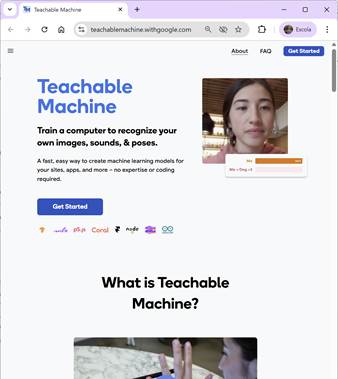
2. Choose the type of project, which are:
· Classify images
· Classify sounds
· Classify poses
Click "Get Started"
3. COMPLETE PRACTICAL EXAMPLE
STEAM Project 5th–9th grade: "My Bot of Likes and Dislikes"
Objective: Train an AI to recognize the Like 👍 and Dislike 👎 gesture and create an interaction in Pictoblox in which the character reacts to the image taken by the computer camera.
Step by step that the teacher can do with the students in the classroom
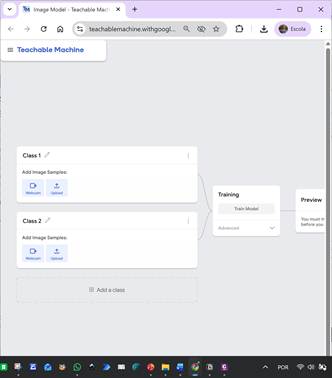
3.1 Create the classes
- Choose "Sort Images."
- Click on "Class 1" → change the name to "Like 👍".
- Click on "Class 2" → change the name to "Dislike 👎".
- (Optional) Class 3 → "Neutral" (closed hand or no gesture).
3.2 Registering the photos
- Click on "Webcam".
- Place your hand in front of the camera and make the gesture . 👍
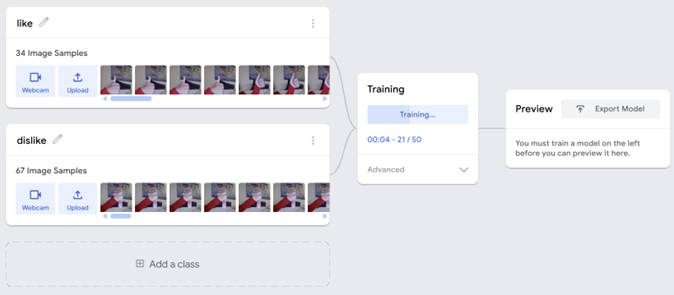
- Hold down the "Hold to Record" button for 3-4 seconds (≈ 70-100 images).
- Repeat with the 👎 gesture.
- Each student in the duo/trio can record their own gestures (more diversity = more robust model).
- Tip: Also record with different light, different background and slight hand rotations.
3.3 Train the model
- Click the large "Train Model" button.
- In 10-15 seconds the model is ready.
3.4 Test the Model
- In the "Preview" section, make 👍 it and 👎 in front of the camera.
- Check the confidence percentage in real time.
- If you fail too much, add more samples and retrain.
3.5 Export the model created in TEACHABLE MACHINE to the Pictoblox program
- Click "Export Model".
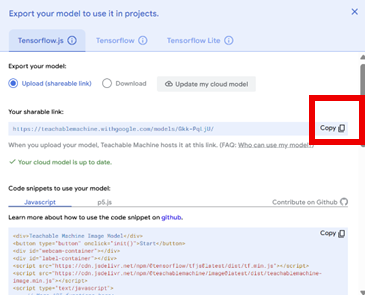
- "Tensorflow.js" tab → "Upload (public or unlisted)".
Copy or link that appears (ex: https://teachablemachine.withgoogle.com/models/abc123/).
- Open Pictoblox
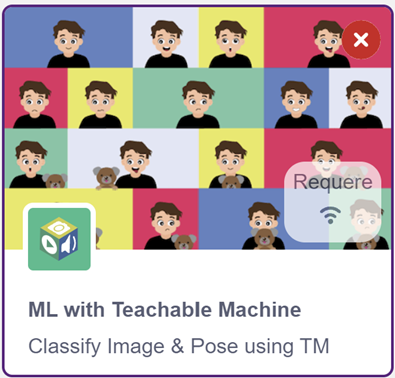
- Add the Machine Learning extension.
- Or directly use the "Teachable Machine" block from the official Champaign-Urbana extension: https://championteachablemachine.github.io/extension
3.6 Programming code for Pictoblox
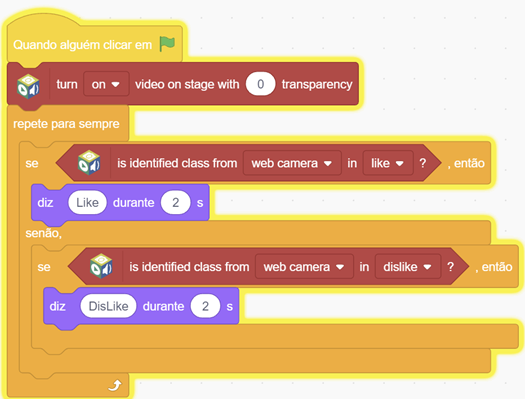
When green flag clicked
liga a webcam
forever
if (Teachable Machine class = "Like 👍") then
says [Like! 😍 ] for 2 seconds
if else (class = "Dislike 👎") then
says [DISLIKE... 😢 ] for 2 seconds
end
end
3.7 Running the Program
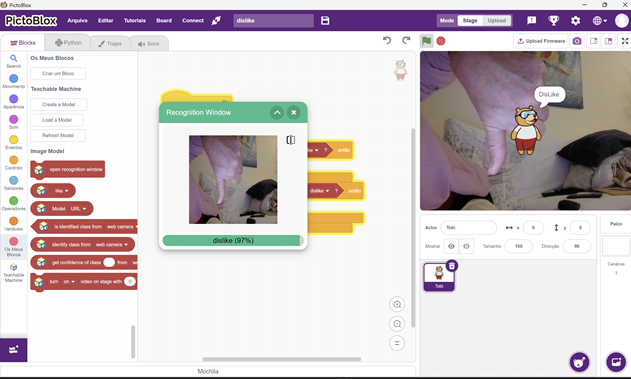
Press the green flag
3.8 Project extension ideas (differentiation)
- Grade 5-6 → simple "Like/Dislike" game of healthy vs. unhealthy foods
- 7th-8th grade → a video game controller (Like = jump, Dislike = crouch)
- 9th grade or secondary → real-time opinion analysis in a presentation by colleagues (votes with gestures)
- Visual Education → recognize facial emotions (happy, sad, angry)
- Music → recognize clapping vs. snapping fingers to change instrument
- Physical Education → recognize correct exercise posture
4. PEDAGOGICAL ADVANTAGES
- Zero code to create AI works on any computer/tablet with camera and microphone
- Promotes computational thinking (model data → → testing → improvement)
- It demystifies the "black box" of AI: students see that the machine only learns from the examples they give
- Inclusive: works with sign language (Makaton, LGP) or voice commands for students with motor difficulties
- Completely free and no registration required
5. GOOD PRACTICE TIPS
- Always use many examples (minimum 50-70 per class) and varied.
- Train the model with multiple people to avoid bias.
- Test with people who did not participate in the training (generalization).
- Teach ethics: "AI only knows what we teach it – if we only put white faces, it doesn't recognize black faces."
- Save the link to the shared template to reuse in other years.
6. SUMMARY
With Teachable Machine, in less than one class, students go from being consumers to creators of artificial intelligence.
It is one of the simplest and most powerful ways to bring AI into the STEAM curriculum, arousing curiosity and critical thinking from 1st cycle to secondary school.
8. Ethical Considerations and Good Practice
While rich in potential, AI tools require responsible use. Teachers should maintain a critical stance, reflecting on:
-
The security of the data used: avoiding the input of pupils’ personal information or sensitive data into platforms without adequate protection guarantees.
-
Verification of the accuracy of generated responses: AI can produce factual errors that appear authoritative.
-
Promoting pupils’ autonomy, ensuring that AI does not become a crutch or a source of ready-made answers.
-
Respecting authorship and preventing plagiarism, particularly in written work produced with the help of AI.
Ethical reflection should accompany technical experimentation, as will be explored further in Chapter 2 of this book.
9. Teacher Training and Communities of Practice
For the use of AI to be truly transformative, it is essential to invest in the continuous professional development of teachers and to foster communities of practice.
Strategies such as:
-
In-person workshops in schools with practical demonstrations;
-
Free MOOCs (Coursera, edX, Udemy, FutureLearn) on AI and education;
-
Sharing through educational social networks (such as Facebook groups, Reddit forums, LinkedIn communities);
-
Group-based action-research projects centred on the practical use of tools;
are fundamental to equipping teachers with confidence, critical thinking, and autonomy. -
AI, no matter how powerful, is only truly effective when integrated into a carefully considered, adapted, and reflective pedagogical approach by educators.
10. AI Tools
10.1. AI Tools for Content Creation
a) ChatGPT (OpenAI)
ChatGPT is one of the most powerful assistants for generating textual content. It can be used to:
-
Create personalised lesson plans;
-
Generate multiple-choice questions, quizzes, and adaptive tests;
-
Simplify complex texts for pupils with comprehension difficulties;
-
Draft emails, assessment rubrics, or pedagogical reports.
b) Canva with AI
Canva integrates AI tools such as Magic Write and Text to Image, which help to create:
-
Interactive presentations;
-
Visually appealing worksheets;
-
Infographics, posters, and visual content for school displays or social media.
Practical example: A History teacher can use Canva to generate a visual timeline of the French Revolution with AI-generated images, incorporating QR codes linking to videos.
c) Khanmigo (Khan Academy)
Khanmigo is Khan Academy’s AI-powered educational assistant. It acts as a tutor for pupils and as an assistant for teachers:
-
Suggests lesson plans based on the curriculum;
-
Explains concepts step by step;
-
Proposes differentiated activities according to difficulty level.
Practical example: A teacher can ask Khanmigo for suggestions for algebra reinforcement activities for pupils with specific difficulties.
10.2. Tools for Automated Assessment and Feedback
a) Gradescope (by Turnitin)
Gradescope uses AI to assist in marking written exams and assignments based on rubrics defined by the teacher:
-
Detects patterns in responses;
-
Provides consistent scoring;
-
Enables instant and transparent feedback.
Practical example: A secondary school Mathematics teacher can scan exam papers and receive automatic marking along with suggestions for individual feedback.
b) EdPuzzle with AI
EdPuzzle allows teachers to embed questions into videos (for example, from YouTube) and now integrates AI to:
-
Automatically generate questions based on the video;
-
Provide detailed performance reports;
-
Assess understanding of audiovisual content.
Practical example: After selecting a video on climate change, the tool automatically generates comprehension questions, and the teacher can view which pupils answered correctly.
c) Formative
This platform enables continuous assessment with real-time feedback, where AI suggests automatic improvements to assessment tools:
-
Supports multiple response formats;
-
Allows questions to be adapted according to pupils’ performance;
-
Detects plagiarism or off-topic responses.
Practical example: During a language lesson, pupils write short responses about a text, and the AI suggests rewordings to improve clarity or accuracy.
10.3. Personal Assistants and Task Management Tools
a) Google Bard / Gemini
Google’s AI tool can be used for:
-
Weekly lesson planning;
-
Suggesting data-driven pedagogical strategies;
-
Creating materials based on national or international curricula.
Practical example: A Geography teacher can ask Bard to organise weekly teaching content, with suggestions for visual resources and practical activities.
b) Notion AI
Notion is an organisational platform which, with integrated AI, allows users to:
-
Create resource databases;
-
Organise ideas for school projects;
-
Generate meeting minutes or summarise academic articles.
Practical example: A department coordinator uses Notion AI to keep the annual plan up to date and to delegate tasks clearly to the teaching team.
c) Trello with AI (Planyway, Butler)
With the help of AI-based extensions, Trello enables teachers to:
-
Automate recurring tasks;
-
Create personalised school calendars;
-
Visualise the progress of classes or working groups.
Practical example: A teacher managing a school club uses Trello with AI to organise the annual plan of extracurricular activities, notifying pupils and colleagues.
10.4. Personalisation and Inclusion with AI
a) Curipod
An AI-based platform for creating interactive lessons and inclusive presentations:
-
Generates presentations based on a chosen topic;
-
Suggests interactive activities (e.g. quizzes, debates);
-
Adapts the level of complexity.
Practical example: A Citizenship teacher can create, in minutes, a presentation on the topic “Misinformation on social media”, with activities differentiated by reading level.
b) Scribbr / Grammarly / Quillbot
These linguistic AI tools help to:
-
Improve written texts (for both pupils and teachers);
-
Rewrite content for greater clarity;
-
Ensure grammatical accuracy and linguistic appropriateness.
Practical example: A Year 13 pupil submits an essay and uses Grammarly to ensure linguistic accuracy. The teacher, in turn, might use Quillbot to simplify instructions before sharing them with the students.
c) Speechify / Read Aloud
These tools convert text into audio, making them very useful for pupils with reading difficulties, dyslexia, or to promote accessibility:
-
Automatic reading of PDFs, web pages, or documents;
-
Adjustable speed, intonation, and voice;
-
Support for pupils with special educational needs.
Practical example: A teacher provides a supporting text in PDF format and recommends that pupils use Speechify to listen to it at home before the lesson.
10.5. Support for Programming and Computational Thinking
a) Scratch with AI (Extensions)
Scratch is already widely used to introduce programming in school contexts. With new extensions and APIs, it is now possible to:
-
Simulate intelligent behaviours;
-
Create educational games with adaptive logic;
-
Work on concepts such as decision-making, repetition, and interaction.
Practical example: Pupils create a game where an avatar provides personalised hints based on the players’ responses.
b) Teachable Machine (Google)
An AI-based tool for creating image, sound, or pose recognition models without the need for coding:
-
Train a model with real-time examples;
-
Create educational applications with visual recognition;
-
Develop interdisciplinary projects using AI.
Practical example: A Science teacher uses Teachable Machine to create a model that recognises the leaves of different plants for a botany project.
10.6. AI in Communication with Parents and Guardians
a) Educational Chatbots (e.g. Botsify, ChatCompose)
Teachers and schools can create personalised chatbots that:
-
Answer frequently asked questions;
-
Provide information about school events;
-
Share report cards or personalised messages.
Practical example: The school leadership team uses a chatbot to answer questions about exam timetables, parent-teacher meetings, or school regulations.
b) Zoom with AI (Otter.ai, Fireflies)
The integration of AI with video conferencing platforms enables:
-
Automatic transcription;
-
Meeting summarisation;
-
Real-time translation.
Practical example: During a meeting with parents from abroad, Zoom uses AI to translate the teacher’s speech into the parents’ native language.
10.7. Good Practice and Limitations in the Use of AI
Despite its transformative potential, it is essential that teachers follow sound ethical and pedagogical principles:
-
Verification of information: AI tools can produce incorrect content ("hallucinations"). Always verify.
-
Data privacy: Avoid using pupils’ names or sensitive data on unauthorised platforms.
-
Transparency: Explain to pupils when and how AI is being used.
-
Inclusion and accessibility: Ensure that the use of AI does not exclude pupils with lower digital skills or limited access to technology.
10.8. Strategies for Gradual Integration
Teachers who do not yet feel confident with AI can start with simple actions:
-
Using Canva with AI to prepare presentations;
-
Creating quizzes with automatic marking in Google Forms;
-
Asking ChatGPT for activity suggestions;
-
Using Notion to organise ideas and plans;
-
Exploring Curipod for classroom activities.
The key is to start with something that offers a clear and tangible benefit, building motivation to explore further.
Final Considerations
The integration of AI tools into teaching practice is not a passing trend, but an irreversible step towards a more efficient, personalised, and pupil-centred education. However, technology only makes sense when it serves pedagogical principles and respects the dignity of all those involved in the educational process.
AI tools are transforming education not merely through innovation, but through their potential to democratise and personalise learning. Yet the true impact of these technologies depends on the teacher’s critical, ethical, and creative mediation. AI does not replace pedagogy; it enhances it.
In this chapter, we have shown how AI can support teachers across various aspects of their work — from planning to assessment, from resource creation to communication with the educational community. When used thoughtfully and creatively, AI can become a genuine “pedagogical superpower”.
By adopting these tools consciously and aligning them with curricular objectives, we can foster a richer, more dynamic, and more inclusive education. In the chapters ahead, we will explore how this integration deepens — in personalised learning (Chapter 4), interactive activities (Chapter 5), assessment and feedback (Chapter 6), and even in the creation of new tools by both teachers and pupils (Chapter 7).
The AI-driven educational revolution has already begun — and teachers are at the heart of this transformation.

Last modified: Thursday, 19 February 2026, 12:52 PM