3. Start Driving and Collect Data
Start your car
cd ~/mycar
python manage.py drive
This script will start the drive loop in your car which includes a part that is a web server for you to control your car. You can now control your car from a web browser at the URL: <your car's hostname.local>:8887
Open a browser and connect to the DonkeyCar Monitor at localhost:8887
NOTE: When the car is started, a folder created under /mycar/data called tub_#_date to store the data for the session. The data is gathered when the throttle is engaged. To gather a clean dataset, best practice is to stop the "python manage.py drive" using Contole + C and restart to begin the training with a new /mycar/data/tub.
There are 2 drive options
1. Use the gamepad (recommended)
After starting the car, open a web browser from the Raspberry Pi desktop while the car is connected to the monitor.
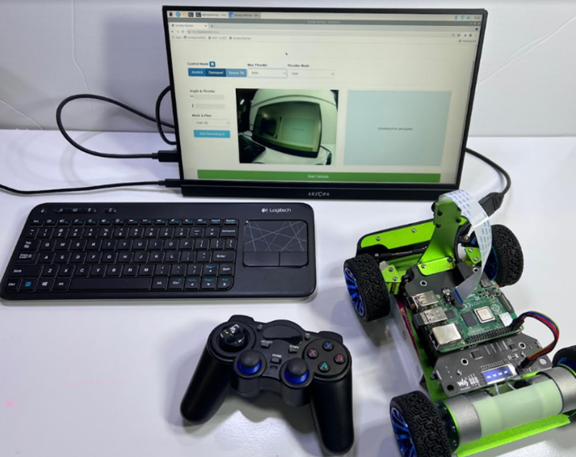
Select Gamepad and set the throttle to 50% to start practicing. Test turns and speed while the car is on the Pi box.
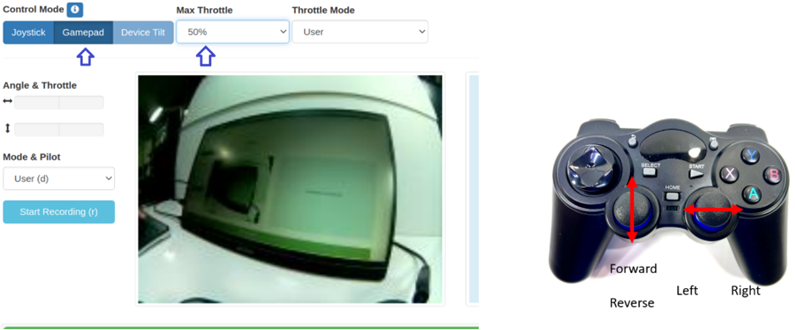
When you are ready to drive on the track, disconnect the monitor, place the car on the track and start driving. Start slow until you are comfortable handling the car.
2. Use the web browser joystick
You will need to use a tablet or phone connected to the same wifi. After starting the car, use a tablet or phone to connect to the car's web server using the car's IP:8887. The car should display its IP if the OLED Display Service was enabled in a previous step.
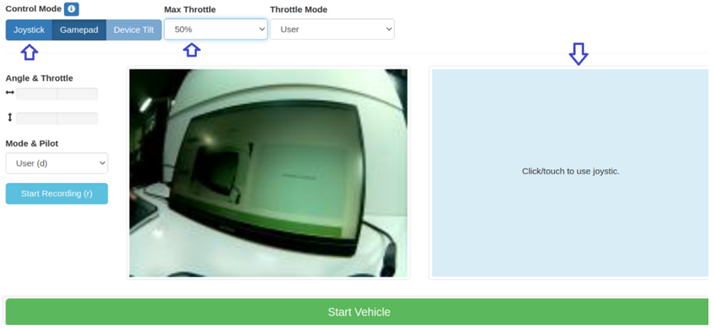
Select Joystick (the joystick control area is labeled click/touch to use joystic) Use the joystick area to drive the car with your finger.
When finished driving, stop the "python manage.py drive" using Contole + C.
Last modified: Tuesday, 2 June 2026, 2:27 PM