10. DobotStudio Operating Instructions
The software used by Dobot Magician is DobotStudio, and you can download the latest version from our official website: http://www.dobot.cc/downloadcenter.html?sub_cat=70#sub-download After the file successfully downloads, unzip and double click DobotStudio.exe.
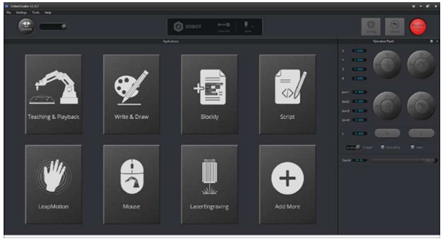
Select the corresponding Dobot serial port, by the top left corner of DobotStudio, and click “Connect”. After a successful connection, “Disconnect” will be shown. When the Dobot is connected, the coordinate parameters will be updated on the right side of the interface
There are eight modules on the main software interface:
· Teaching & Playback: A system to teach the Dobot how to move. It enables the Dobot to accomplish recorded movements by manual control.
· Write & Draw: Controls the Dobot to write, draw or laser engrave.
· DobotBlockly:Teaches basic programming through a puzzle interface. Intuitive and easy to understand.
· Script: Edit scripting language to control the Dobot.
· LeapMotion: Control the Dobot by gesture.
· Mouse: Control the Dobot by mouse.
· LaserEngraving: Engraves images, shapes, and words through bitmap with the Dobot.
· Add More: Add even more functions for the Dobot!
10.1 Linear mode
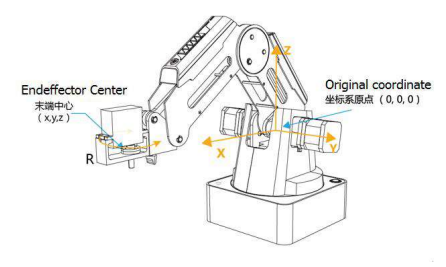
Based on the body axes coordinate system X, Y, Z with the origin at the center of three motors. X, Y, Z is the coordinate of the center of the end platform, and the direction of X is perpendicular to the base forward, Y is perpendicular to the base towards the left, and Z is vertical upward. R indicates the rotation of the servo joint relative to the coordinate frame (counter-clockwise is the positive direction).
(1) Click X+,X- and Dobot will move along X in the negative or positive direction;
(2) Click Y+,Y- and Dobot will move along Y in the negative or positive direction;
(3) Click Z+,Z- and Dobot will move along Z in the negative or positive direction;
(4) Click R+,R- and Dobot will move along R in the negative or positive direction.
10.2 Jog mode
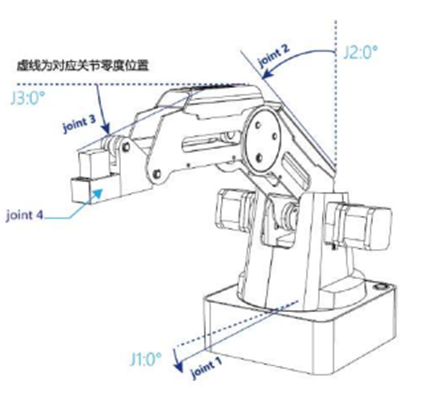
This movement is aimed for a single axis. Hold down the button, and the corresponding axis will move independently. Once the axis is maxed out, the joint will stop moving. Each axis has counterclockwise as the positive direction. Joint1、2、3、4 refer to base, rear arm, forearm and servo respectively.
(1) Click Joint1+、Joint1- and control the Dobot base motor to rotate in the negative or positive direction;
(2) Click Joint2+、Joint2- and control rear arm motor to rotate in the negative or positive direction;
(3) Click Joint3+、Joint3- and control forearm motor to rotate in the negative or positive direction;
(4) Click Joint4+、Joint4- and control servor to rotate in the negative or positive direction; Among this, the rotation range of Joint4 is ±150°
Last modified: Tuesday, 2 June 2026, 2:31 PM